How To Make Notion Aesthetic
A cluttered digital workspace can feel overwhelming.
Imagine opening Notion to a clean, inspiring layout that boosts your focus and joy.
I transformed my own chaotic Notion setup into a system I genuinely love using daily, and I’ll show you how to do the same.
Quick Overview
You’re about to transform your Notion workspace from functional to truly inspiring. This guide will walk you through designing a personalized, beautiful, and highly effective Notion environment.
- Time needed: 1-3 hours for initial setup, ongoing refinement as desired
- Difficulty: Beginner to Intermediate
- What you’ll need: A Notion account, an internet browser, a sense of creativity
Step-by-Step Instructions
Step 1: Define Your Personal Aesthetic
Before you start adding elements, decide on a cohesive look. This foundation guides all your choices.
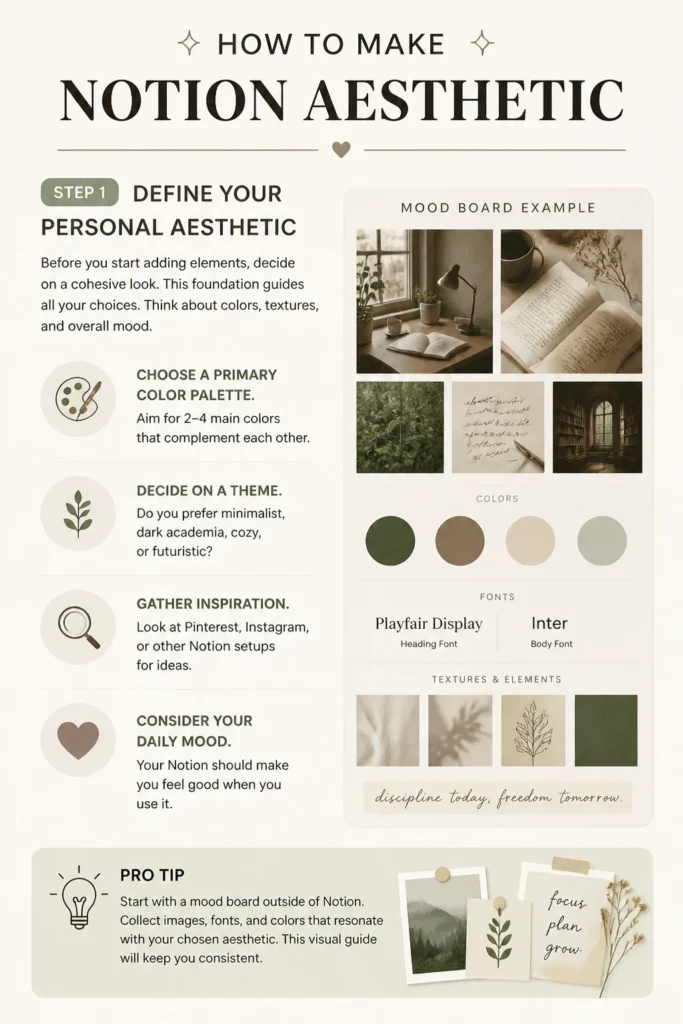
Think about colors, textures, and overall mood.
- Choose a primary color palette. Aim for 2-4 main colors that complement each other.
- Decide on a theme. Do you prefer minimalist, dark academia, cozy, or futuristic?
- Gather inspiration. Look at Pinterest, Instagram, or other Notion setups for ideas.
- Consider your daily mood. Your Notion should make you feel good when you use it.
Pro Tip: Start with a mood board outside of Notion. Collect images, fonts, and colors that resonate with your chosen aesthetic. This visual guide will keep you consistent.
Step 2: Select Striking Icons and Covers
Icons and covers are the first visual elements on any Notion page. They set the tone immediately.
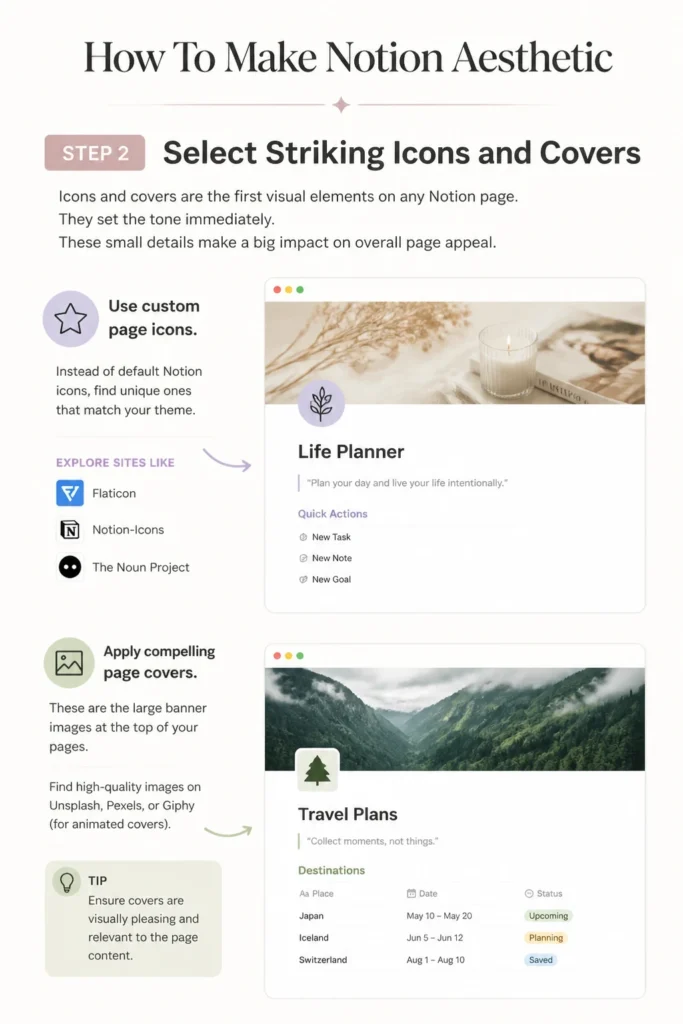
These small details make a big impact on overall page appeal.
- Use custom page icons. Instead of default Notion icons, find unique ones that match your theme.
- Explore sites like Flaticon, Notion-Icons, or The Noun Project for a wide variety.
- Apply compelling page covers. These are the large banner images at the top of your pages.
- Find high-quality images on Unsplash, Pexels, or Giphy (for animated covers).
- Ensure covers are visually pleasing and relevant to the page content.
Step 3: Master Typography and Text Formatting
Text is the core of Notion. How it looks affects readability and visual flow.
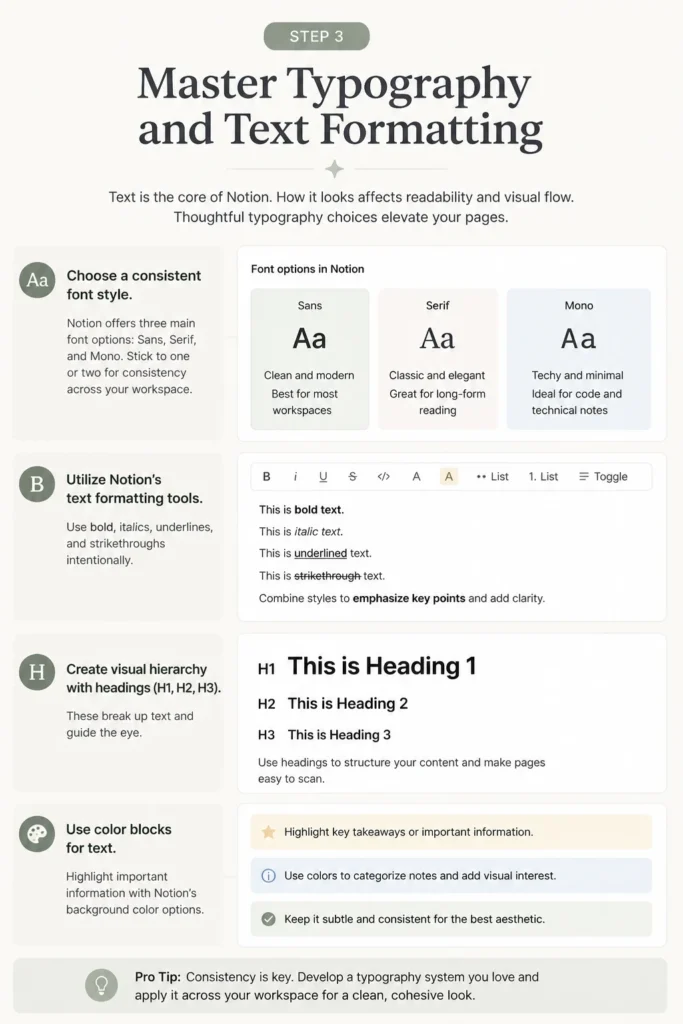
Thoughtful typography choices elevate your pages.
- Choose a consistent font style. Notion offers three main font options: Sans, Serif, and Mono.
- Stick to one or two for consistency across your workspace.
- Utilize Notion’s text formatting tools. Use bold, italics, underlines, and strikethroughs intentionally.
- Create visual hierarchy with headings (H1, H2, H3). These break up text and guide the eye.
- Use color blocks for text. Highlight important information with Notion’s background color options.
Step 4: Integrate Engaging Images and GIFs
Visual elements break up text and add personality.
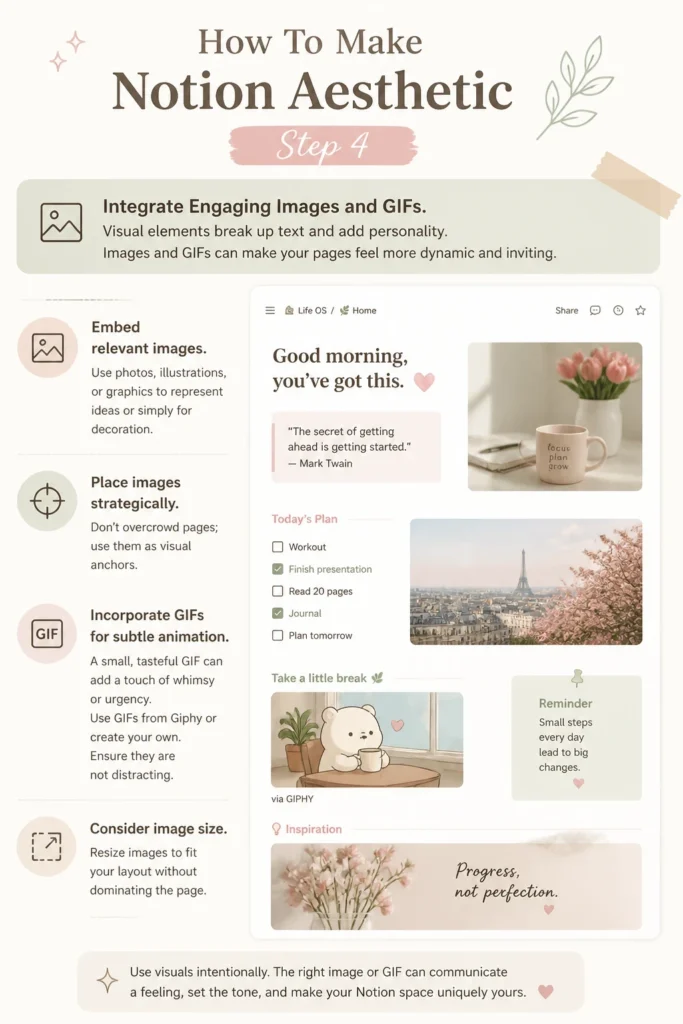
Images and GIFs can make your pages feel more dynamic and inviting.
- Embed relevant images. Use photos, illustrations, or graphics to represent ideas or simply for decoration.
- Place images strategically. Don’t overcrowd pages; use them as visual anchors.
- Incorporate GIFs for subtle animation. A small, tasteful GIF can add a touch of whimsy or urgency.
- Use GIFs from Giphy or create your own. Ensure they are not distracting.
- Consider image size. Resize images to fit your layout without dominating the page.
Step 5: Embed External Widgets for Functionality and Flair
Widgets add dynamic content and extra utility to your pages.
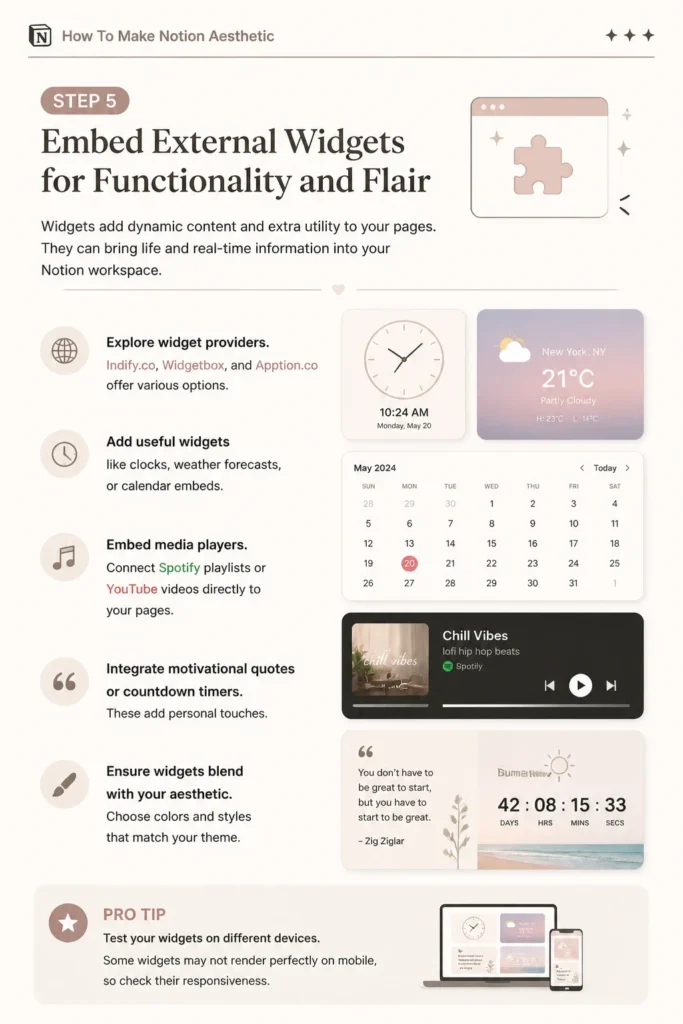
They can bring life and real-time information into your Notion workspace.
- Explore widget providers. Indify.co, Widgetbox, and Apption.co offer various options.
- Add useful widgets like clocks, weather forecasts, or calendar embeds.
- Embed media players. Connect Spotify playlists or YouTube videos directly to your pages.
- Integrate motivational quotes or countdown timers. These add personal touches.
- Ensure widgets blend with your aesthetic. Choose colors and styles that match your theme.
Pro Tip: Test your widgets on different devices. Some widgets may not render perfectly on mobile, so check their responsiveness.
Step 6: Structure with Callouts and Toggles
These Notion blocks are perfect for organizing information cleanly.
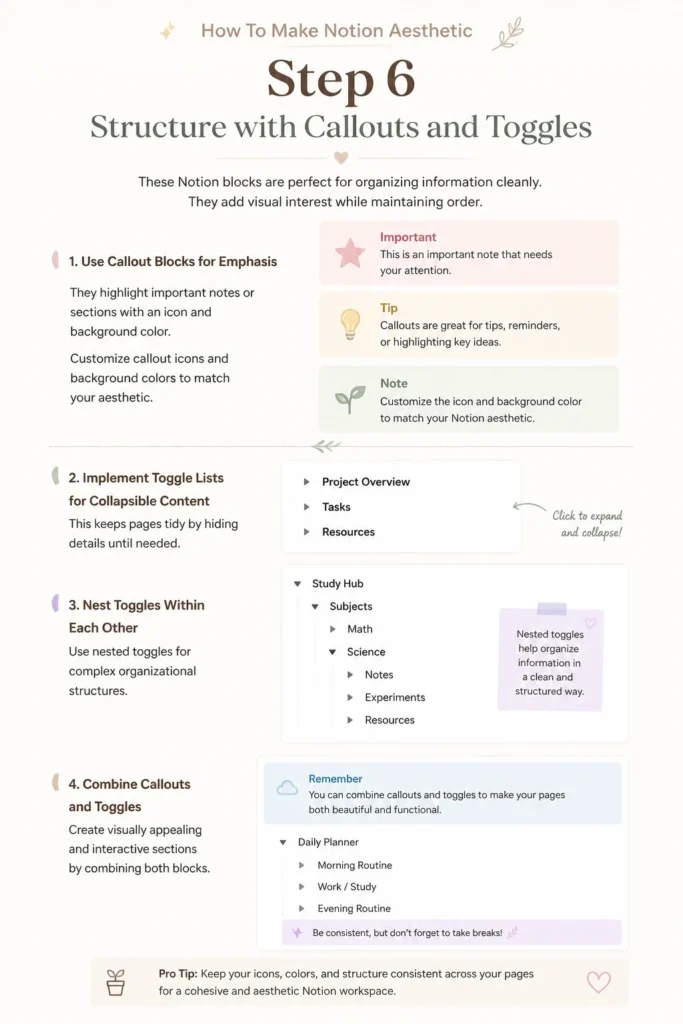
They add visual interest while maintaining order.
- Use callout blocks for emphasis. They highlight important notes or sections with an icon and background color.
- Customize callout icons and background colors to match your aesthetic.
- Implement toggle lists for collapsible content. This keeps pages tidy by hiding details until needed.
- Nest toggles within each other for complex organizational structures.
- Combine callouts and toggles to create visually appealing and interactive sections.
Step 7: Optimize Layout with Columns and Spacing
A well-structured layout is fundamental to an aesthetic page.
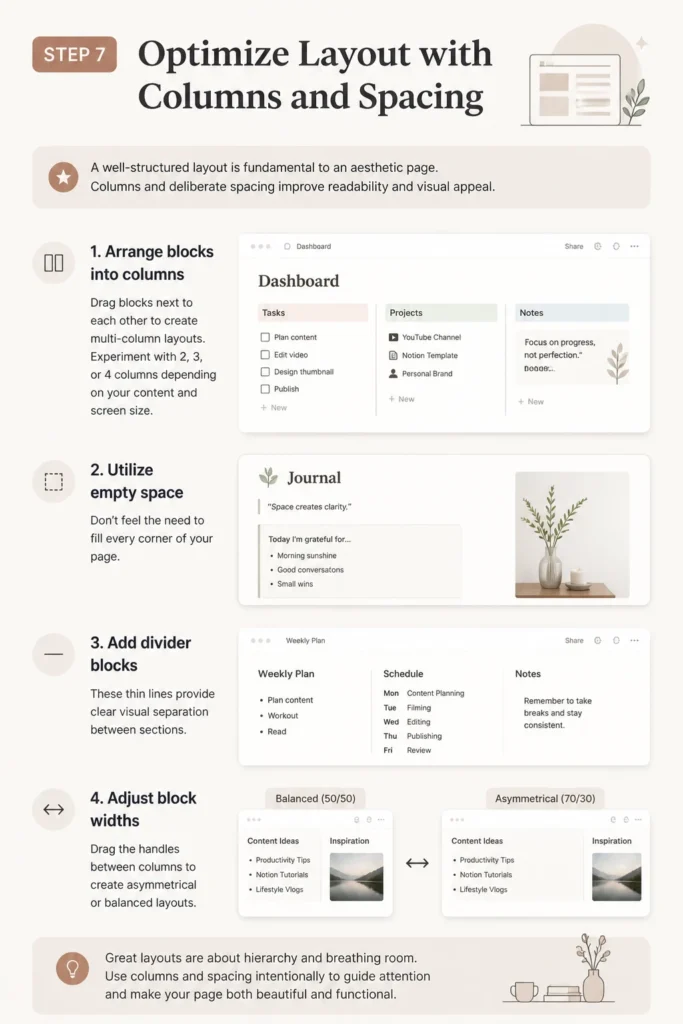
Columns and deliberate spacing improve readability and visual appeal.
- Arrange blocks into columns. Drag blocks next to each other to create multi-column layouts.
- Experiment with 2, 3, or 4 columns depending on your content and screen size.
- Utilize empty space. Don’t feel the need to fill every corner of your page.
- Add divider blocks. These thin lines provide clear visual separation between sections.
- Adjust block widths. Drag the handles between columns to create asymmetrical or balanced layouts.
Step 8: Leverage Templates and Community Creations
You don’t have to start from scratch. Many resources offer beautiful Notion templates.
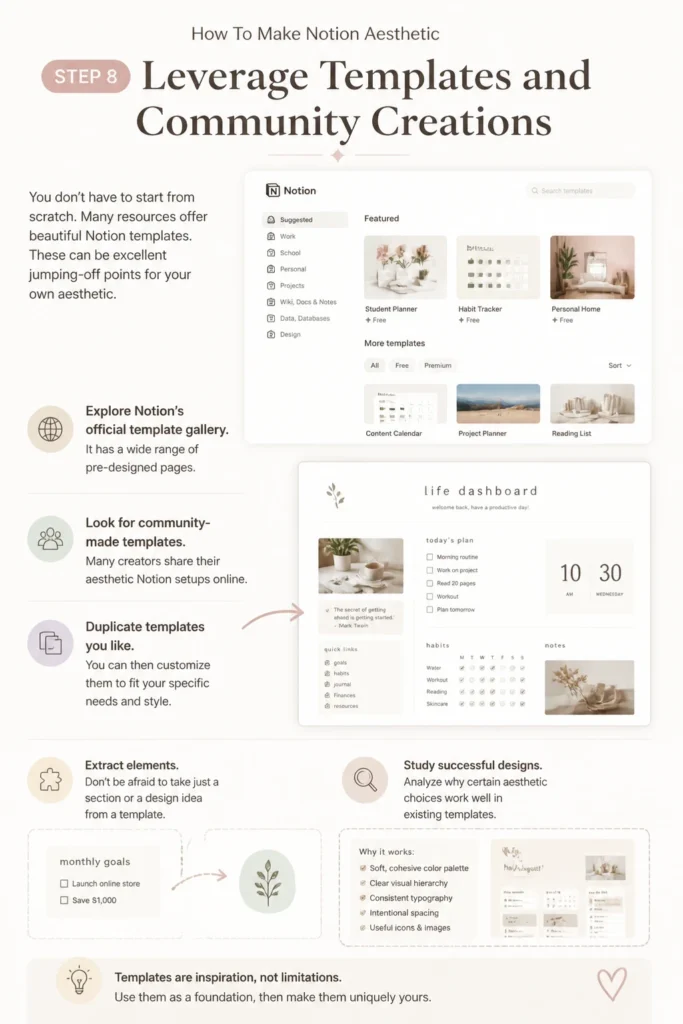
These can be excellent jumping-off points for your own aesthetic.
- Explore Notion’s official template gallery. It has a wide range of pre-designed pages.
- Look for community-made templates. Many creators share their aesthetic Notion setups online.
- Duplicate templates you like. You can then customize them to fit your specific needs and style.
- Extract elements. Don’t be afraid to take just a section or a design idea from a template.
- Study successful designs. Analyze why certain aesthetic choices work well in existing templates.
Step 9: Regularly Review and Refine Your Design
Aesthetic isn’t a one-time setup; it’s an ongoing process.
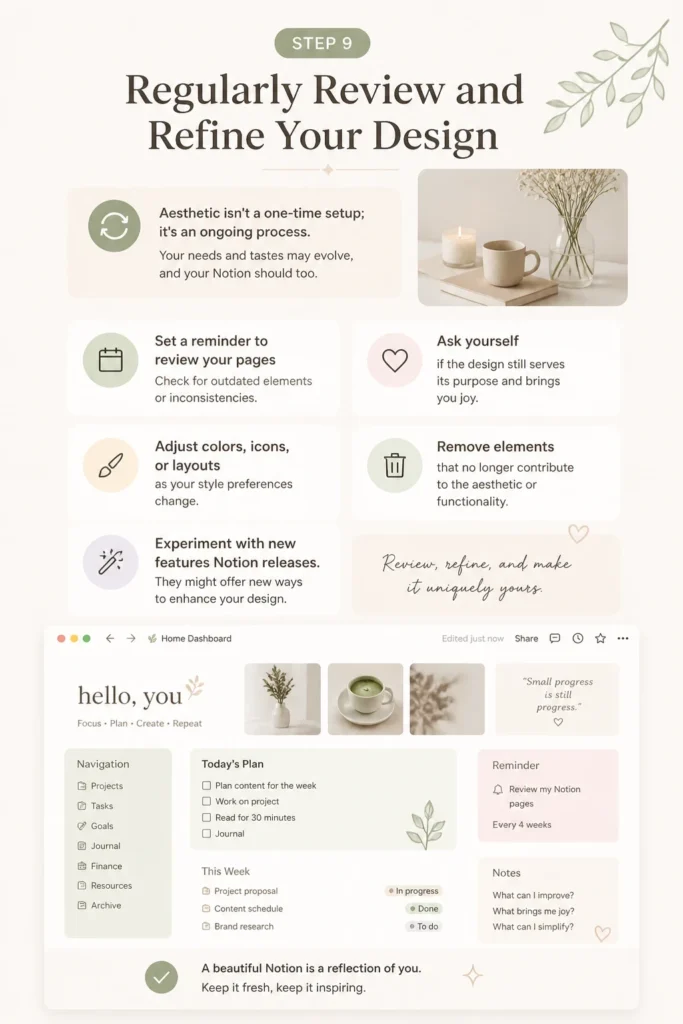
Your needs and tastes may evolve, and your Notion should too.
- Set a reminder to review your pages periodically. Check for outdated elements or inconsistencies.
- Ask yourself if the design still serves its purpose and brings you joy.
- Adjust colors, icons, or layouts as your style preferences change.
- Remove elements that no longer contribute to the aesthetic or functionality.
- Experiment with new features Notion releases. They might offer new ways to enhance your design.
Common Mistakes to Avoid
Over-Cluttering Your Pages
It’s tempting to add every beautiful icon, widget, and image you find. However, too much visual information can be overwhelming and counterproductive. A busy page makes it hard to focus on the actual content, defeating the purpose of an organized workspace. Prioritize functionality and clarity over excessive decoration.
Inconsistent Styling
Mixing several different icon packs, font styles, or color palettes across your Notion workspace creates a disjointed look. This lack of cohesion can make your pages feel messy and unprofessional. Stick to a defined aesthetic and apply it consistently across all your main pages for a harmonious experience.
Neglecting Functionality for Looks
While aesthetics are important, your Notion workspace’s primary goal is to help you organize and be productive. A page that looks stunning but is difficult to navigate or use effectively isn’t truly aesthetic. Always ensure that design choices enhance, rather than hinder, the usability of your pages.
Ignoring Mobile Responsiveness
Many users access Notion on their phones or tablets. A beautiful desktop layout might look broken or unreadable on a smaller screen if not considered during the design process. Regularly check how your pages appear on mobile to ensure a good experience across all devices.
Troubleshooting
Slow Loading Pages
If your Notion pages are loading slowly, it’s often due to too many large images, GIFs, or embedded widgets. High-resolution images, especially those not optimized for web, can significantly drag down performance. Too many complex embeds also consume resources.
To fix this, compress your images before uploading them. Use tools like TinyPNG or online image compressors. Limit the number of GIFs and complex widgets on a single page. Consider breaking down very long pages into smaller, linked sub-pages to distribute the load.
Broken or Misaligned Embeds
Sometimes, embedded widgets or external links might not display correctly or become misaligned. This can happen due to changes in the source website, incorrect embed codes, or issues with Notion’s rendering. Browser extensions or ad blockers can also interfere with embeds.
First, check the embed code for any typos or missing characters. Try refreshing the Notion page or even restarting your browser. If the issue persists, visit the source website of the embed to ensure it’s still active and providing the correct embed URL. Temporarily disable browser extensions to see if they are the cause.
Layout Shifts or Unexpected Gaps
You might notice your carefully arranged columns or blocks shifting around, creating awkward gaps or overlapping content. This often occurs when resizing browser windows, or when Notion updates its layout engine. Sometimes, a single large block within a column can push others out of alignment.
To resolve this, try adjusting the width of your columns slightly. Ensure no single block is excessively wide within a column. Use divider blocks to create clear separation, which can sometimes stabilize layouts. If the issue persists, delete and recreate the problematic section, dragging blocks carefully into their desired positions.
Key Takeaways
- Consistency in design elements like colors, fonts, and icons creates a cohesive and professional look.
- Prioritize functionality; an aesthetic Notion workspace should also be highly usable and efficient.
- Less is often more; avoid clutter by being intentional with every image, widget, and decorative element.
- Personalize your Notion to reflect your unique style and needs, making it truly yours.
- Regularly review and refine your pages to keep them fresh, relevant, and aligned with your evolving aesthetic.
- Utilize Notion’s native blocks like callouts, toggles, and columns to structure content beautifully.
Frequently Asked Questions
Where can I find free, aesthetic icons for Notion?
Many websites offer free icons. Flaticon, The Noun Project, and Notion-Icons are excellent resources. You can search for specific themes or styles. Always check the licensing terms if you plan to share your Notion pages publicly.
Can I use custom fonts in Notion?
Notion currently offers three built-in font styles: Sans, Serif, and Mono. You cannot directly upload custom fonts. However, you can use embedded widgets (like Indify’s custom text widget) to display text in different fonts. This applies only to the text within the widget, not your entire Notion workspace.
How do I make my Notion aesthetic in dark mode?
Notion’s dark mode automatically changes the background to a darker color. To make your pages aesthetic in dark mode, choose cover images and icons that complement dark backgrounds. Use lighter text colors for contrast, and select callout block colors that pop without being too bright. Test your design in both light and dark modes.
Can I share my aesthetic Notion pages with others?
Yes, you can share your Notion pages. Click the “Share” button at the top right of your page, then enable “Share to web.” You can choose whether to allow editing, commenting, or duplicating. Be mindful that any embedded widgets or external links will also be visible to anyone with the link.
Your Space, Your Style: Start Designing Today
Creating an aesthetic Notion workspace is a journey of creativity and organization. It’s about crafting a digital environment that supports your work and inspires your day.
Don’t just organize your tasks; design your entire digital world.
Begin experimenting with these steps today. Your ideal Notion setup is within reach, waiting for your personal touch.
Our Top Recommended Finds
- Ergonomic Monitor: A good monitor reduces eye strain and provides ample screen real estate for your Notion layouts.
- Ambient Lighting Strip: Subtle backlighting behind your monitor can enhance your workspace mood and reduce eye fatigue.
- Digital Pen Tablet: For those who love to sketch or handwrite notes, a tablet can integrate seamlessly for visual input into Notion.